Flutter Dropdown Example
In Flutter, the Dropdown widget is used to provide a list of options to the user. This widget is commonly used in forms where the user is required to select an option from a list of choices. The Dropdown widget is easy to use and provides a sleek and intuitive way for users to select an option.
Creating a Dropdown Widget
Creating a Dropdown widget in Flutter is simple. To create a Dropdown widget, you need to specify the options that will be displayed in the list. Here is an example of how to create a Dropdown widget:
String dropdownValue = 'One';

DropdownButton<String>(
  value: dropdownValue,
  icon: Icon(Icons.arrow_downward),
  iconSize: 24,
  elevation: 16,
  style: TextStyle(color: Colors.deepPurple),
  underline: Container(
    height: 2,
    color: Colors.deepPurpleAccent,
  ),
  onChanged: (String newValue) {
    setState(() {
      dropdownValue = newValue;
    });
  },
  items: <String>['One', 'Two', 'Three', 'Four']
      .map<DropdownMenuItem<String>>((String value) {
    return DropdownMenuItem<String>(
      value: value,
      child: Text(value),
    );
  }).toList(),
);
In this example, the DropdownButton widget is created and the value parameter is set to dropdownValue. The items parameter is a list of strings that will be displayed in the dropdown list. The onChanged parameter is set to a function that will be called when the user selects an option from the list.
Customizing the Dropdown Widget
The Dropdown widget can be customized to fit your app's style and design. Here are some examples of how to customize the Dropdown widget:
Changing the Dropdown Button Icon
To change the icon that is displayed on the Dropdown button, you can use the icon parameter. Here is an example:
DropdownButton<String>(
  value: dropdownValue,
  icon: Icon(Icons.arrow_forward),
  items: <String>['One', 'Two', 'Three', 'Four']
      .map<DropdownMenuItem<String>>((String value) {
    return DropdownMenuItem<String>(
      value: value,
      child: Text(value),
    );
  }).toList(),
  onChanged: (String newValue) {
    setState(() {
      dropdownValue = newValue;
    });
  },
);
In this example, the icon parameter is set to the Icon widget with the Icons.arrow_forward icon.
Changing the Dropdown Button Color
To change the color of the Dropdown button, you can use the style parameter. Here is an example:
DropdownButton<String>(
  value: dropdownValue,
  style: TextStyle(color: Colors.red),
  items: <String>['One', 'Two', 'Three', 'Four']
      .map<DropdownMenuItem<String>>((String value) {
    return DropdownMenuItem<String>(
      value: value,
      child: Text(value),
    );
  }).toList(),
  onChanged: (String newValue) {
    setState(() {
      dropdownValue = newValue;
    });
  },
);
In this example, the style parameter is set to a TextStyle object with the color set to Colors.red.
More Examples
This is a flutter dropdown example. Through Dropdowns we can select one or more items. Dropdowns normally occupy a smaller space than other type of widgets which display lists of data like gridview and listview.
This example doesn't require any dependency.
(a). main.dart
This is the only file you are required to create in this project.
Start by adding imports:
import 'package:flutter/material.dart';
That material.dart gives us access to several flutter material design components to use including dropdown.
Create the MyAppState, extending the state class. The MyApp is a custom StatefulWidget for which the state is being created.
class MyAppState extends State<MyApp> {
Inside this class define the list of items that will be rendered in the dropdown:
List _fruits = ["Apple", "Banana", "Pineapple", "Mango", "Grapes"];
Then add two more instance fields including a List of dropdown menu items and a string to hold the selected item:
  List<DropdownMenuItem<String>> _dropDownMenuItems;
  String _selectedFruit;
Then override the initState() class:
void initState() {
_dropDownMenuItems = buildAndGetDropDownMenuItems(_fruits);
_selectedFruit = _dropDownMenuItems[0].value;
super.initState();
}
Here is the method to build and get the dropdown menu items:
  List<DropdownMenuItem<String>> buildAndGetDropDownMenuItems(List fruits) {
    List<DropdownMenuItem<String>> items = new List();
    for (String fruit in fruits) {
      items.add(new DropdownMenuItem(value: fruit, child: new Text(fruit)));
    }
    return items;
  }
Here is the method to change the dropdown items:
    void changedDropDownItem(String selectedFruit) {
    setState(() {
      _selectedFruit = selectedFruit;
    });
  }
Finally override the build() method:
Widget build(BuildContext context) {
return new MaterialApp(
debugShowCheckedModeBanner: false,
home: new Scaffold(
appBar: new AppBar(
title: new Text("DropDown Button Example"),
),
body: new Container(
child: new Center(
child: new Column(
crossAxisAlignment: CrossAxisAlignment.center,
mainAxisAlignment: MainAxisAlignment.center,
children: <Widget>[
new Text("Please choose a fruit: "),
new DropdownButton(
value: _selectedFruit,
items: _dropDownMenuItems,
onChanged: changedDropDownItem,
)
],
)),
),
),
);
}
Here is the full code for main.dart:
import 'package:flutter/material.dart';
void main() => runApp(new MyApp());
class MyApp extends StatefulWidget {
State<StatefulWidget> createState() {
return new MyAppState();
}
}
class MyAppState extends State<MyApp> {
List _fruits = ["Apple", "Banana", "Pineapple", "Mango", "Grapes"];
List<DropdownMenuItem<String>> _dropDownMenuItems;
String _selectedFruit;
void initState() {
_dropDownMenuItems = buildAndGetDropDownMenuItems(_fruits);
_selectedFruit = _dropDownMenuItems[0].value;
super.initState();
}
List<DropdownMenuItem<String>> buildAndGetDropDownMenuItems(List fruits) {
List<DropdownMenuItem<String>> items = new List();
for (String fruit in fruits) {
items.add(new DropdownMenuItem(value: fruit, child: new Text(fruit)));
}
return items;
}
void changedDropDownItem(String selectedFruit) {
setState(() {
_selectedFruit = selectedFruit;
});
}
Widget build(BuildContext context) {
return new MaterialApp(
debugShowCheckedModeBanner: false,
home: new Scaffold(
appBar: new AppBar(
title: new Text("DropDown Button Example"),
),
body: new Container(
child: new Center(
child: new Column(
crossAxisAlignment: CrossAxisAlignment.center,
mainAxisAlignment: MainAxisAlignment.center,
children: <Widget>[
new Text("Please choose a fruit: "),
new DropdownButton(
value: _selectedFruit,
items: _dropDownMenuItems,
onChanged: changedDropDownItem,
)
],
)),
),
),
);
}
}
Demo
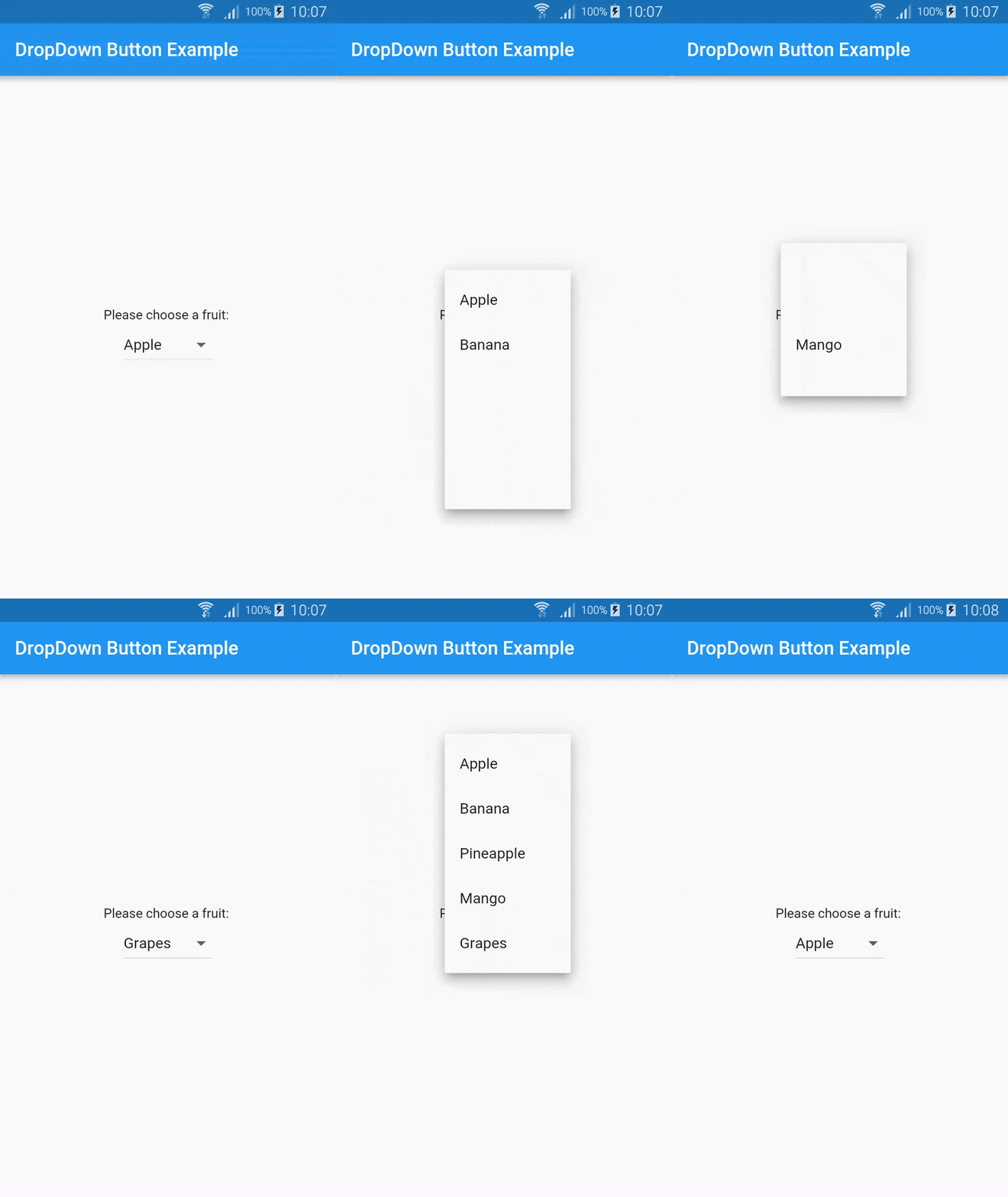
Here is the demo
Download
| No. | Link |
|---|---|
| 1. | Download code |
Special thanks to @nisrulz for creating this great example.
The License for the above code is Apache Version 2.0.
Conclusion
The Dropdown widget is an important widget in Flutter that is used to provide a list of options to the user. This widget is easy to use and can be customized to fit your app's style and design. By using the examples provided, you can create a Dropdown widget that meets your app's requirements.