Flutter AlertDialog Tutorial y Ejemplos
En este tutorial veremos las opciones para crear diálogos de alerta en Flutter. Esto implica crearlos con o sin paquetes de terceros.
¿Qué es un diálogo de alerta?
Un diálogo de alerta informa al usuario sobre situaciones que requieren reconocimiento.
¿Qué es Flutter?
Flutter es el SDK de aplicaciones móviles de Google para crear interfaces nativas de alta calidad en iOS y Android en un tiempo récord.
Flutter funciona con código existente, es utilizado por desarrolladores y organizaciones de todo el mundo, y es gratuito y de código abierto.
Ejemplo 1: Ejemplo de AlertDialog simple de Flutter
Veamos un ejemplo de alertdialog simple de Flutter con título y descripciones. En este ejemplo primero renderizamos un botón plano que cuando el usuario pulsa o hace clic, abrimos un diálogo de alerta. En este ejemplo no utilizamos ninguna librería de terceros.

Aquí tenemos la aplicación en modo apaisado:
Video tutorial(Canal de TV ProgrammingWizards)
Bueno tenemos un video tutorial como alternativa a esto. Si prefieres tutoriales como este entonces sería bueno que te suscribieras a nuestro canal de YouTube. Básicamente tenemos una TV de programación donde hacemos tutoriales diarios especialmente de android.
Aquí están los archivos que exploramos:
- pubspec.yaml
- lib/main.dart
Paso 1: Dependencias
Flutter soporta el uso de paquetes compartidos aportados por otros desarrolladores a los ecosistemas Flutter y Dart. Esto te permite construir rápidamente tu aplicación sin tener que desarrollar todo desde cero.
Vamos a añadir paquetes bajo este archivo.
- Abre el archivo
pubspec.yamlubicado dentro de la carpeta de tu app, y añade las dependencias bajo dependencies. - Si se trata de un tercero, entonces tienes que instalarlo.
Desde el terminal: Ejecutarflutter packages get.
O
Desde Android Studio/IntelliJ: Haz clic en "Packages Get" en la cinta de acción en la parte superior de pubspec.yaml
Desde VS Code: Haz clic en "Get Packages" situado en la parte derecha de la cinta de acción en la parte superior de pubspec.yaml
flutter es siempre nuestra dependencia del sdk ya que lo usamos para desarrollar nuestras aplicaciones ios y android.
name: mr_alert_dialog
description: A new Flutter project.

dependencies:
  flutter:
    sdk: flutter

  # The following adds the Cupertino Icons font to your application.
  # Use with the CupertinoIcons class for iOS style icons.
  cupertino_icons: ^0.1.2

dev_dependencies:
  flutter_test:
    sdk: flutter

# For information on the generic Dart part of this file, see the
# following page: https://www.dartlang.org/tools/pub/pubspec

# The following section is specific to Flutter.
flutter:

  # The following line ensures that the Material Icons font is
  # included with your application, so that you can use the icons in
  # the material Icons class.
  uses-material-design: true
Como puedes ver hemos utilizado los paquetes estándar y ninguna librería de terceros.
Paso 2: Escribir el código
main.dart es donde escribimos nuestro código flutter en lenguaje de programación dart. En Dart es muy común escribir varias clases en un solo archivo. Así que este simple archivo tendrá tres clases.
1. Cómo hacer paquetes en Flutter/Dart
Pero primero necesitamos importar algunos paquetes y lo hacemos usando la palabra clave import en dart.
import 'package:flutter/material.dart';
Aquí están los paquetes que vamos a importar:
- material.dart : nos dará los widgets de material design y el tema.
2. Como las clases en Flutter/Dart
En Dart, como en la mayoría de los lenguajes de programación de estilo C, se crea una clase utilizando la palabra clave class. Las clases son un mecanismo de encapsulación en los lenguajes de programación orientados a objetos.
En este caso creamos tres clases:
class MyApp extends StatelessWidget {..}
class Home extends StatefulWidget {..}
Nuestra primera clase deriva de StatelessWidget e implementa el método build(). Ese método construirá un widget MaterialApp con título, home y tema establecidos y lo devolverá como widget.
La segunda clase derivará de StatefulWidget y anulará el método createState().
Aquí está el código fuente completo:
import 'package:flutter/material.dart';
class MyApp extends StatelessWidget {
Widget build(BuildContext context) {
return new MaterialApp(
title: 'Flutter AlertDialog',
home: Scaffold(
appBar: AppBar(
title: Text("AlertDialog Example"),
),
body: Home(),
),
theme: new ThemeData(primaryColor: Colors.orange),
);
}
}
class Home extends StatelessWidget {
/**
Comstruct our widget and return it.
*/
Widget build(BuildContext context) {
return Center(
child: RaisedButton(
onPressed: () {
showDialog(
context: context,
builder: (BuildContext context) {
// return object of type AlertDialog
return AlertDialog(
title: new Text("AlertDialog Class"),
content: new Text("Creates an alert dialog.Typically used in conjunction with showDialog."+
"The contentPadding must not be null. The titlePadding defaults to null, which implies a default."),
actions: <Widget>[
// usually buttons at the bottom of the dialog
new FlatButton(
child: new Text("Close"),
onPressed: () {
Navigator.of(context).pop();
},
),
],
);
},
);
},
child: Text('Show AlertDialog'),
),
);
}
}
void main() {
runApp(new MyApp());
}
//end
Ejecutar aplicaciones Flutter
Sólo tienes que asegurarte de que tu dispositivo o emulador se está ejecutando y hacer clic en el botón run en android studio, automáticamente elegirá el dispositivo e instalará la aplicación.
Aletrnative puede utilizar el terminal o símbolo del sistema. Navega/Cd hasta la página raíz del proyecto y escribe esto:
flutter.bat build apk
Esto construirá el APK que luego puede arrastrar e instalar en su dispositivo. El proceso de construcción en mi máquina toma alrededor de tres minutos que no está mal.
Ejemplo 2: Diálogo de confirmación de Flutter
import 'package:flutter/material.dart';
void main(){ runApp(new MaterialApp(
home: new MyApp(),
));
}
enum MyDialogueAction{
yes,
no,
maybe
}
class MyApp extends StatefulWidget {
MyAppState createState() => new MyAppState();
}
class MyAppState extends State<MyApp> {
String _text = '';
void _onChange(String value) {
setState((){
_text = value;
});
}
void _dialogueResult(MyDialogueAction value){
print('you selected $value');
Navigator.pop(context);
}
void _showAlert(String value){
showDialog(
context: context,
builder: (_) => new AlertDialog(
title: new Text('Alert!'),
content: new Text(value,
style: new TextStyle(fontSize: 30.0),),
actions: <Widget>[
new FlatButton(onPressed: () {_dialogueResult(MyDialogueAction.yes);}, child: new Text('yes')),
new FlatButton(onPressed: () {_dialogueResult(MyDialogueAction.no);}, child: new Text('no')),
],
)
);
}
Widget build (BuildContext context){
return new Scaffold(
appBar: new AppBar(
title: new Text('Alert Demo'),
),body: new Container(
child: new Column(
children: <Widget>[
new TextField(onChanged: (String value){ _onChange(value);},),
new RaisedButton(
onPressed: (){_showAlert(_text);},
child: new Text('Press me'),
)
],
),
),
);
}
}
Ejemplo 3: Diálogo animado, Giffy Ejemplo
Si quieres tener algo más con tus diálogos de alerta entonces necesitas usar paquetes de terceros como este.
Giffy Dialog es un hermoso y personalizado diálogo de alerta para flutter altamente inspirado en FancyAlertDialog-Android.
El código fuente es 100% Dart, y todo reside en la carpeta /lib.
A través de esta solución puedes cargar cabeceras de diálogos con imágenes gif localmente o remotamente desde la red.
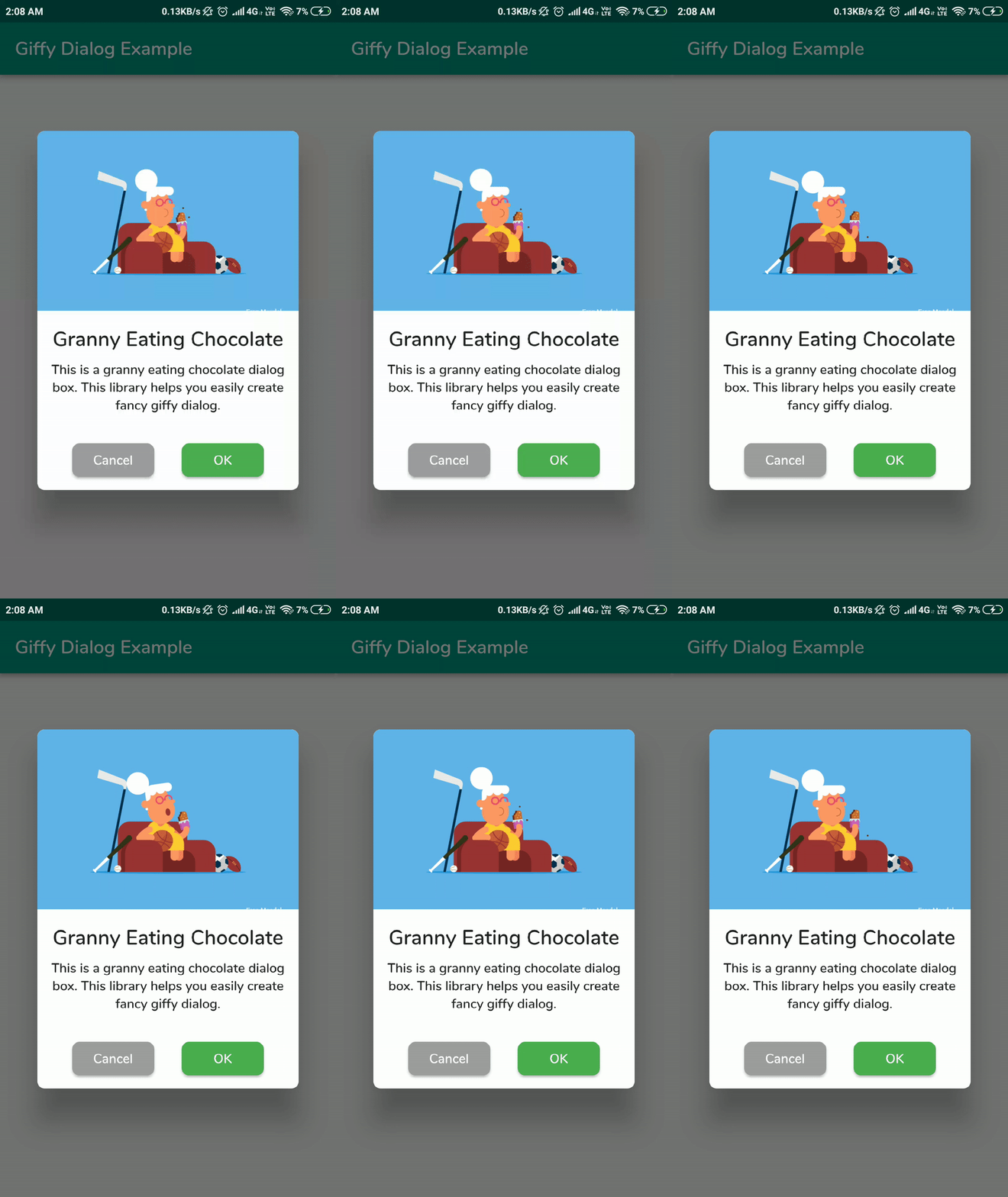
Aquí hay una demostración de este diálogo en uso:
Paso 1: Instalarlo
En su pubspec.yaml añada este paquete como dependencia:
dependencies:
  giffy_dialog: 1.8.0
flutter pub get para obtenerlo.
Paso 2: Preparar las imágenes
Añadir algunas imágenes en la carpeta de activos o preparar urls de imágenes.
Paso 3: Escribir el código
Comienza importando giffy_dialog:
import 'package:giffy_dialog/giffy_dialog.dart';
Así es como se crea un diálogo con una imagen de cabecera cargada desde la red:
onPressed: () {
  showDialog(
  context: context,builder: (_) => NetworkGiffyDialog(
    imageUrl:"https://raw.githubusercontent.com/Shashank02051997/
              FancyGifDialog-Android/master/GIF's/gif14.gif",
    title: Text('Granny Eating Chocolate',
            textAlign: TextAlign.center,
            style: TextStyle(
            fontSize: 22.0,
            fontWeight: FontWeight.w600)),
    description:Text('This is a granny eating chocolate dialog box.
          This library helps you easily create fancy giffy dialog',
          textAlign: TextAlign.center,
        ),
    entryAnimation: EntryAnimation.BOTTOM_TOP,
    onOkButtonPressed: () {},
  ) );
}
Y aquí es como se crea un diálogo con imagen de cabecera cargada desde la carpeta de activos:
onPressed: () {
  showDialog(
  context: context,builder: (_) => AssetGiffyDialog(
    imagePath: 'assets/men_wearing_jacket.gif',
    title: Text('Men Wearing Jackets',
            style: TextStyle(
            fontSize: 22.0, fontWeight: FontWeight.w600),
    ),
    description: Text('This is a men wearing jackets dialog box.
          This library helps you easily create fancy giffy dialog.',
          textAlign: TextAlign.center,
          style: TextStyle(),
        ),
    entryAnimation: EntryAnimation.RIGHT_LEFT,
    onOkButtonPressed: () {},
  ) );
}

Ejemplo completo
Comience por instalar la biblioteca como se ha discutido anteriormente.
Luego reemplaza tu main.dart con el siguiente código:
main.dart
import 'package:flutter/material.dart';
import 'package:giffy_dialog/giffy_dialog.dart';
void main() => runApp(new MyApp());
const List<Key> keys = [
Key("Network"),
Key("NetworkDialog"),
Key("Flare"),
Key("FlareDialog"),
Key("Asset"),
Key("AssetDialog")
];
class MyApp extends StatelessWidget {
Widget build(BuildContext context) {
return MaterialApp(
debugShowCheckedModeBanner: false,
title: 'Giffy Dialog Demo',
theme: ThemeData(primarySwatch: Colors.teal, fontFamily: 'Nunito'),
home: MyHomePage(),
);
}
}
class MyHomePage extends StatelessWidget {
Widget build(BuildContext context) {
return Scaffold(
appBar: AppBar(
title: Text("Giffy Dialog Example"),
),
body: Center(
child: Column(
mainAxisAlignment: MainAxisAlignment.center,
children: <Widget>[
RaisedButton(
key: keys[0],
color: Colors.teal,
child: Text(
"Network Giffy",
style: TextStyle(
color: Colors.white,
),
),
onPressed: () {
showDialog(
context: context,
builder: (_) => NetworkGiffyDialog(
key: keys[1],
image: Image.network(
"https://raw.githubusercontent.com/Shashank02051997/FancyGifDialog-Android/master/GIF's/gif14.gif",
fit: BoxFit.cover,
),
entryAnimation: EntryAnimation.TOP_LEFT,
title: Text(
'Granny Eating Chocolate',
textAlign: TextAlign.center,
style: TextStyle(
fontSize: 22.0, fontWeight: FontWeight.w600),
),
description: Text(
'This is a granny eating chocolate dialog box. This library helps you easily create fancy giffy dialog.',
textAlign: TextAlign.center,
),
onOkButtonPressed: () {},
));
}),
RaisedButton(
key: keys[2],
color: Colors.teal,
child: Text(
'Flare Giffy',
style: TextStyle(
color: Colors.white,
),
),
onPressed: () {
showDialog(
context: context,
builder: (_) => FlareGiffyDialog(
key: keys[3],
flarePath: 'assets/space_demo.flr',
flareAnimation: 'loading',
title: Text(
'Space Reloading',
textAlign: TextAlign.center,
style: TextStyle(
fontSize: 22.0, fontWeight: FontWeight.w600),
),
entryAnimation: EntryAnimation.DEFAULT,
description: Text(
'This is a space reloading dialog box. This library helps you easily create fancy flare dialog.',
textAlign: TextAlign.center,
style: TextStyle(),
),
onOkButtonPressed: () {},
));
}),
RaisedButton(
key: keys[4],
color: Colors.teal,
child: Text(
'Asset Giffy',
style: TextStyle(
color: Colors.white,
),
),
onPressed: () {
showDialog(
context: context,
builder: (_) => AssetGiffyDialog(
key: keys[5],
image: Image.asset(
'assets/men_wearing_jacket.gif',
fit: BoxFit.cover,
),
title: Text(
'Men Wearing Jackets',
textAlign: TextAlign.center,
style: TextStyle(
fontSize: 22.0, fontWeight: FontWeight.w600),
),
entryAnimation: EntryAnimation.BOTTOM_RIGHT,
description: Text(
'This is a men wearing jackets dialog box. This library helps you easily create fancy giffy dialog.',
textAlign: TextAlign.center,
style: TextStyle(),
),
onOkButtonPressed: () {},
));
}),
],
),
),
);
}
}
Referencia
Aquí están los enlaces de referencia:
| --- |
|---|